Create a Script using AI
With the AI-powered script generation capability, you can generate scripts based on natural language prompts, modify existing scripts, and automate script properties. Currently, Scripting is supported for Windows & macOS.
To create a script using AI:
- Navigate to Libraries > Scripting.
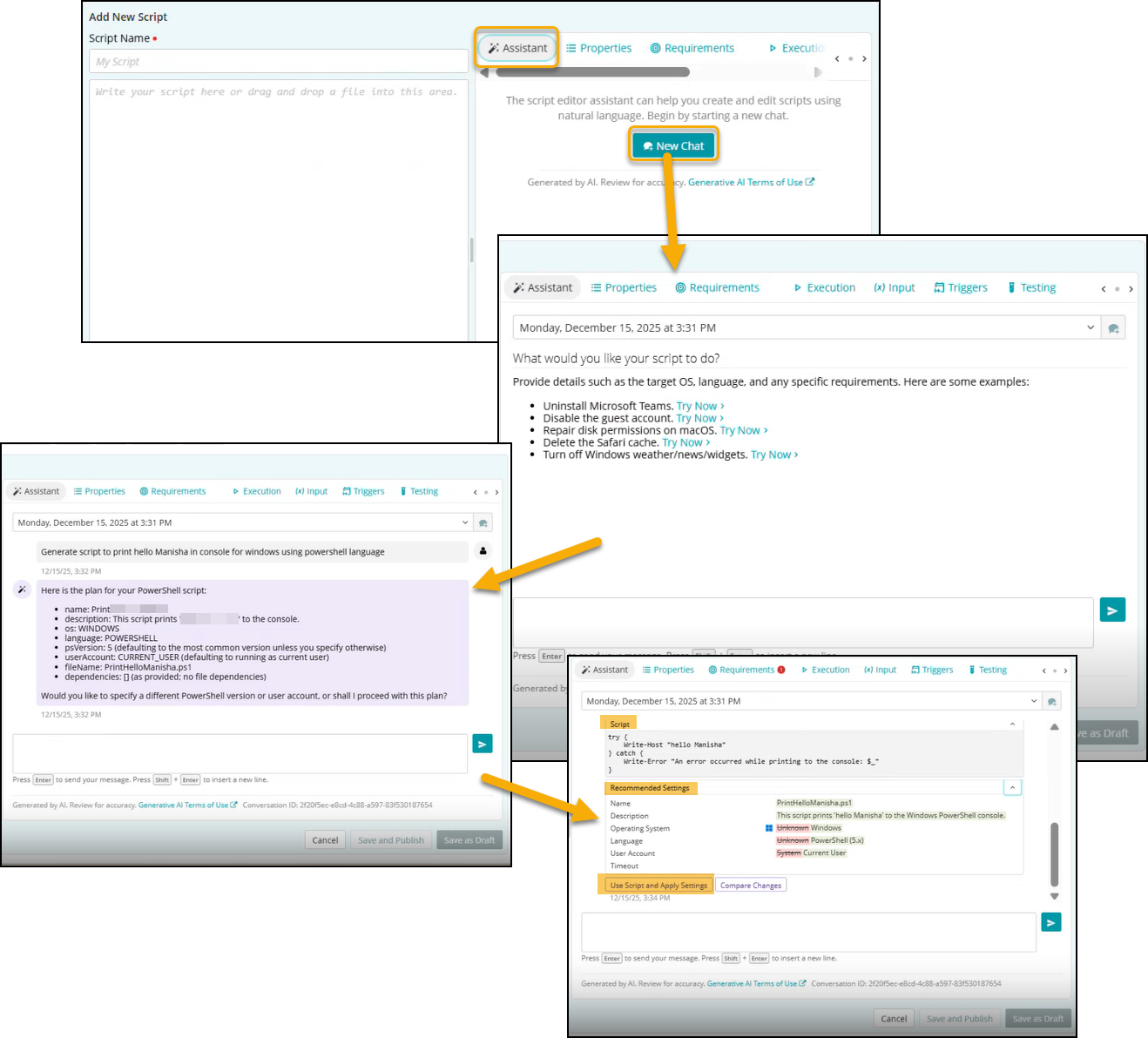
- On the Scripting page, click the Assistant tab to open the script editor assistant.
- Click New Chat to create a script using natural language.
- To create a new script, type a clear, specific prompt describing the script you want, and provide details such as the target OS, language, and any specific requirements.

NOTE: When you provide a clear and unambiguous prompt, the Assistant responds with a script and recommended settings.
If not provided, the Assistant displays plan for the script which a user needs to accept and prompt it to generate the script. - Click Enter.
The Assistant analyzes your prompt and displays a plan for the script. - Review the plan/script and Recommended Settings populated by the Assistant:
- Name: Auto-generated name of the script based on the prompt.
- Description: Auto generated. It summarizes the script purpose.
NOTE: For existing scripts, if the description is not added, you can add it by clicking the Generate Description button.
- Operating System: Selected based on the prompt. Defaults to Windows if not specified in the prompt.
- Language: Selected based on the prompt. Defaults to PowerShell for Windows & POSIXShell for macOS if not specified in the prompt.
- Language Version: Selected based on the prompt. Defaults to the latest supported version if not specified in the prompt.
- User Account: Selected based on the prompt. Defaults to current user if not specified.
- Timeout: Specifies the time the script will be terminated if it is still running after the timeout elapses.
- Dependencies: As specified in the prompt.
If not adding dependency while creating a script, you can add it later. See Adding Dependencies. - Click Use Script and Apply Settings to insert the generated script and recommended settings.
- Review and modify any settings as needed.
- Click Save and Publish to publish the script or Save as Draft to save the script as a draft.
|
|
NOTE: Points to remember about a Session:
|
